Path of Titans RCON Configuration
You can use Source RCON protocol to help moderate your server. You can configure and setup RCON with the following steps.
The server must be stopped while editing server files. You must save your edits and restart your server for any edits to take effect.
To change the configuration options, click on Files and navigate to the following path:
LinuxServer is the folder name for Linux servers. If you are using a different operating system, the folder name will be different but the other folders will be the same.
Underneath the [SourceRCON] header, create the entries specified in the below example.
Example of RCON Config
Example for NexLink Core Servers only, as NLC doesn’t require additional lines.
NLC Example Game.ini
[SourceRCON]bEnabled=trueOther Providers Example Game.ini
[SourceRCON]bEnabled=truebLogging=truePassword="password"Port=0IP="0.0.0.0"MaxFailedAttempts=5Timeout=60PageTimeout=5MaxConnectionsPerIP=3Examples of where to locate Server IP and RCON Port
Disclaimer This info is only for NexLink Core Game Panel
PC Users
First you need to find your Game Server’s IP, this will be located at the top right of every screen and looks like this
This is just a example
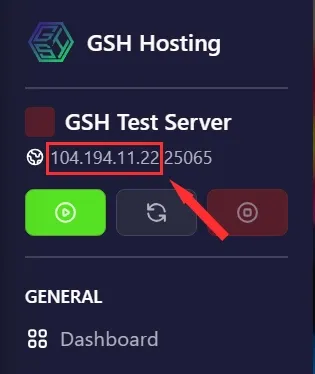
You only want the Server IP, not with the game port, So only this 104.194.11.22 DO NOT include the :25065 game port as well or you will get a error!
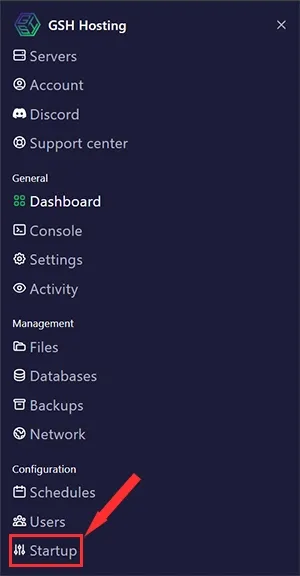
Then locate your Startup tab on your NLC game panel, for PC users it’ll be on the left side at the very bottom.
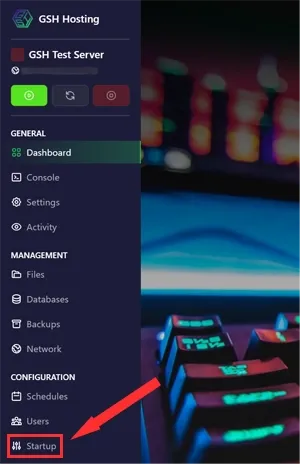
Here you can get your RCON Port and RCON Password
Please ensure that your Password, is kept as secure as possible. Support will NOT ask you for your RCON password at any point. Best to make it something you’ll not remember!
Mobile/Tablet User
For mobile users You need to first click the 3 lines at the top right
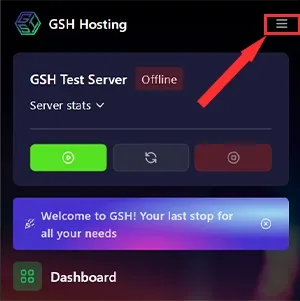
Then here